Display and Scan the Request
Document 06 created a session and returned its pdFetchUrl. This step chooses the right way to open that request for the user's device: open Credential Wallet on iOS, or show a QR code on other devices.
The frontend SDK is optional. You can build your own UI.
The frontend must not create or sign the request. It only starts a backend session, displays the backend-owned URL, and checks the session status after the wallet submits.
Install the frontend SDK
npm install @iamhuman.link/presentation-request-frontend-sdk qrcode.vue
Open the request on iOS or show a QR code
After the backend creates a session, check the device:
- On iOS browsers, call
openPresentationRequest. It opens the wallet handoff URL, which passes the request URL to Credential Wallet. IncludereturnUrlwhen the user should return to a page that checks the session status. - On other devices, display a QR code. Set
qr-value-mode="pd"so the QR code contains the rawpdFetchUrlthat Credential Wallet scans and fetches directly.
PresentationRequestQr also renders its “Open wallet” link as the wallet handoff URL. This is separate from the QR code: the link helps a user open Credential Wallet, while the desktop QR code lets a second device scan the direct request URL. Although wallet is the component's default QR mode, use pd for the QR code in this integration.
<template>
  <button type="button" :disabled="loading" @click="startVerification">
    Verify personhood
  </button>

  <PresentationRequestQr
    v-if="session"
    :pd-url="session.pdFetchUrl"
    :return-url="returnUrl"
    :expires-at="session.expiresAt"
    link-label="Open wallet"
    expired-label="Expired"
    :expires-in-label="(seconds) => `Expires in ${seconds}s`"
    status-label="Waiting for wallet"
    check-status-label="Check status"
    qr-value-mode="pd"
    @check-status="checkStatus"
  />
</template>

<script setup lang="ts">
import { computed, ref } from 'vue';
import {
  PresentationRequestQr,
  isIOSMobileBrowser,
  openPresentationRequest,
} from '@iamhuman.link/presentation-request-frontend-sdk';

const loading = ref(false);
const session = ref<null | {
  sessionId: string;
  pdFetchUrl: string;
  expiresAt: string;
}>(null);

const returnUrl = computed(() => {
  if (!session.value) return window.location.href;
  const url = new URL('/forum/new-post', window.location.origin);
  url.searchParams.set('personhoodSessionId', session.value.sessionId);
  return url.toString();
});

async function startVerification() {
  loading.value = true;
  try {
    const response = await fetch('/api/personhood/sessions', { method: 'POST' });
    if (!response.ok) throw new Error('Could not create verification session');
    const data = await response.json();
    session.value = data.session;

    if (isIOSMobileBrowser()) {
      openPresentationRequest({
        pdUrl: data.session.pdFetchUrl,
        returnUrl: returnUrl.value,
      });
    }
  } finally {
    loading.value = false;
  }
}

async function checkStatus() {
  if (!session.value) return;
  const response = await fetch(
    `/api/personhood/sessions/${session.value.sessionId}/status`,
  );
  const data = await response.json();
  if (data.status === 'verified') {
    // Enable the protected action or continue the pending workflow.
  }
}
</script>
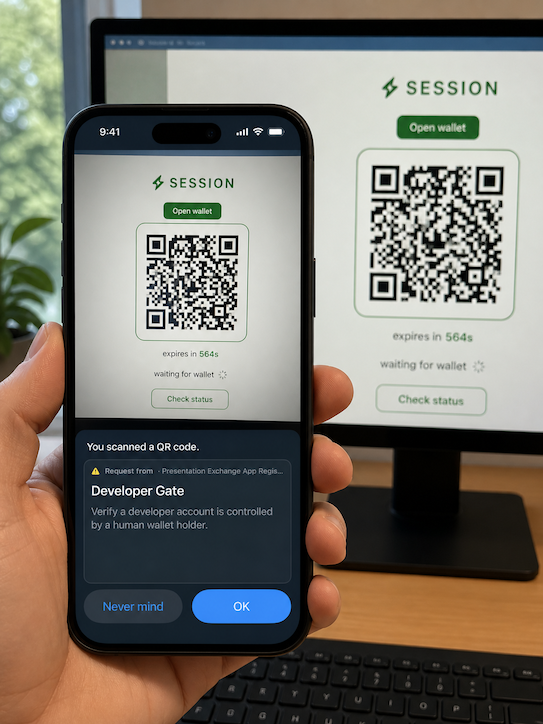
On iOS, openPresentationRequest navigates to the wallet handoff page. On other devices, leave the session visible and show the QR code for Credential Wallet to scan. The returnUrl is optional; use it to return the user to a page that can check the session status.
Do not treat a successful QR scan as verification. A scan only lets the wallet fetch and display the request. Verification is complete only after the backend accepts the wallet submission.
Scan the QR code from Credential Wallet
The user scans the QR code with Credential Wallet. The wallet then:
- Fetches
GET {pdFetchUrl}. - Reads the
pdVcrequest envelope from the response. - Verifies the request VC and its bindings, including
pdHash,pdRequestId,nonce, and expiration. - Downloads or resolves the Presentation Definition referenced by the request.
- Shows the requested credential and attributes for user consent.
Your frontend does not need to fetch pdVc or decode jwtVc. Keep the fetch endpoint publicly reachable for the short session lifetime, and make sure its response is exactly the wallet-compatible shape:
{
  "ok": true,
  "pdVc": {
    "jwtVc": "<signed request VC>",
    "expiresAt": "2026-07-14T10:00:00.000Z",
    "pdRequestId": "<session id>",
    "pdRequestType": "BasicAccessRequestVerifiableCredential",
    "pdHash": "<presentation definition hash>",
    "appId": "<registered app id>",
    "nonce": "<session nonce>"
  }
}
After the user approves the request, continue with Submit and verify the wallet presentation.