Register Your App
Register your app with the Presentation Exchange Platform before creating wallet requests. Registration tells the wallet and credential services which app is asking, which domains are allowed, and which credential types the app may request.
Registration Checklist and Example
Use the following checklist to plan your app registration. The example shows fields for a Developer Forum scope.
| Item | Example | Notes |
|---|---|---|
| App ID | developer-forum | Use a stable identifier with letters, numbers, dots, underscores, or hyphens. |
| App name | Developer Forum | Shown in wallet context. |
| App URL | https://developer.iamhuman.link/forum | Public website or product URL. |
| Allowed origin | http://192.168.0.100:5175 | Browser origin allowed to start the flow. HTTP is acceptable for a local-development frontend origin |
| PD fetch domain | 192.168.0.100 | Host name only (no scheme or path) for the backend endpoint where the wallet fetches the request. Local load is acceptable with HTTP, but public URLs must use HTTPS. |
| VC submission domain | 192.168.0.100 | Host name only (no scheme or path) for the backend endpoint where the wallet submits the result. Local load is acceptable with HTTP, but public URLs must use HTTPS. |
| Scope ID | developer-forum-account | Identifier for this scope inside the app. |
| Scope Title | Forum Account | Display name for this scope inside the app. |
| Credential Type Name | Basic Access | Describe the object or action this scope authorizes. |
| Description | Prove you are human to post and comment | Explain to the user what this credential type represents. |
| Request Mode | ConfigDriven | Choose ConfigDriven for the flow in this guide. Choose DeveloperDefined only if you are implementing that separate integration model. |
| Target Credential | Human | Choose whether this request needs Human or Uniqueness. |
| Human Source | Platform user data | Platform user data means the name and photo are retrieved from the user's Facebook or LINE account. |
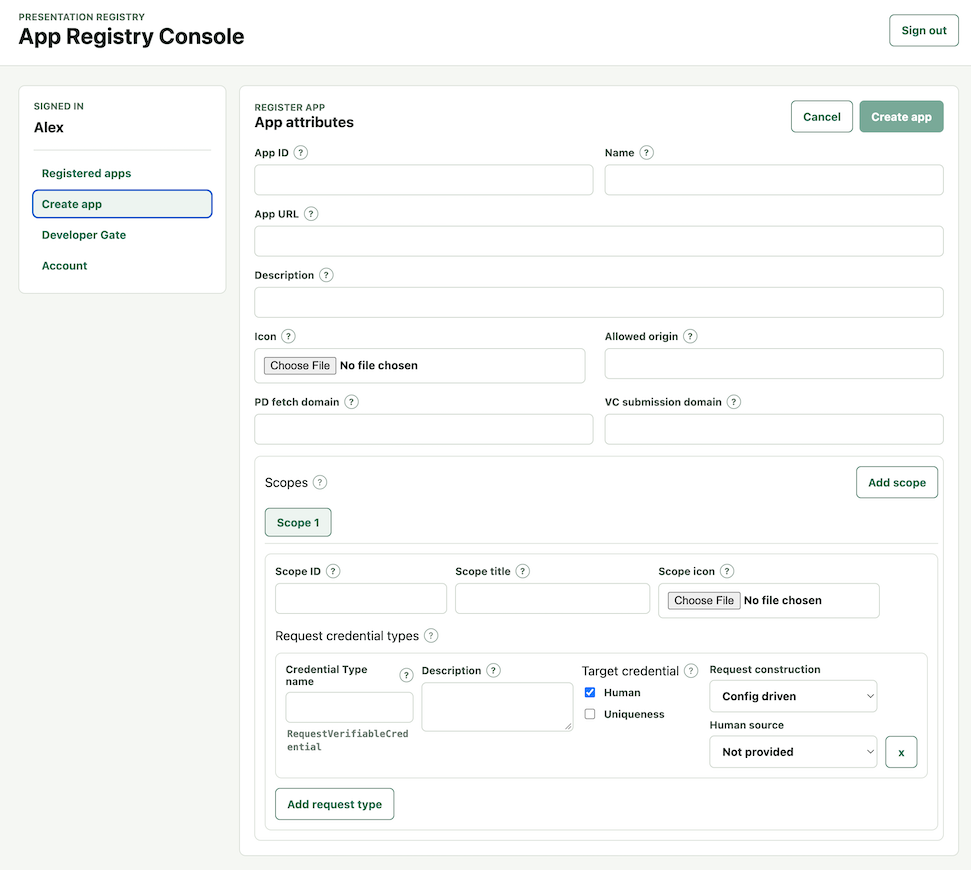
Select Save changes to save your app registration.
Enable Testing and Download Your Files
Your backend needs two files from PEP:
- App config: public app configuration that the Presentation Exchange SDK uses to validate request types, domains, and allowed credential targets.
- Request issuer DID: the complete DID, including private-key material, that your backend uses to sign presentation requests.
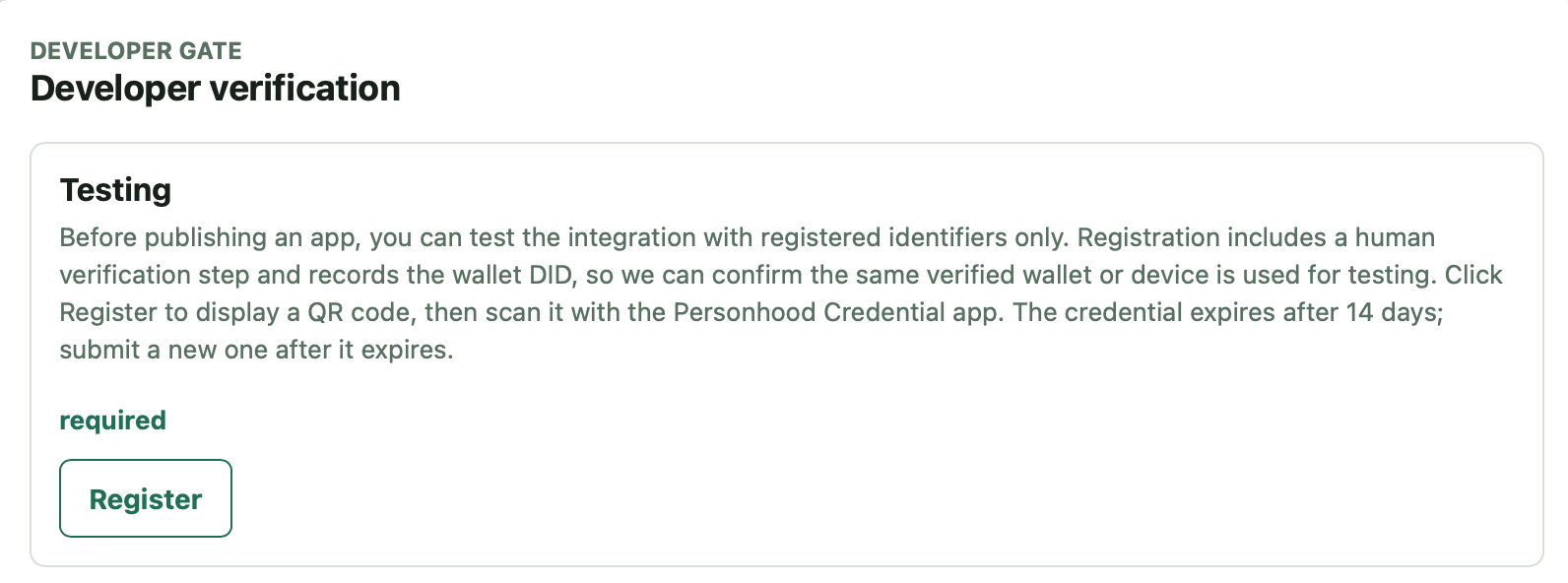
Before you can download the app config, enable testing for the app. First, open Developer Gate and register for Testing. PEP displays a QR code for you to scan with the Personhood Credential app. This verifies your developer wallet and records its DID, so only that wallet can use your unpublished app while testing.
After the Testing registration is verified, return to your app configuration page and select Enable testing. You can then download the app config and store it with your backend deployment configuration.
The app config does not include private key material.
Download the complete request-issuer DID and store it in your secret manager. You can download this file only once.
Security requirements:
- store the complete DID and private key material only in backend secret storage
- never ship the request issuer private key to the browser
- keep separate app records and secrets for stage and production
Output Of This Step
By the end of this step, you should have:
- a registered app
- an app config file
- a request issuer DID stored in backend secret storage
- registered PD fetch and VC submission endpoint domains for your backend
Next Step
Continue to Add the SDK and Load Config.